


Accessibility Tools

top request quotetop phonetop request quote

As a meeting organizer, you can set up and offer CART captioning to your audience instead of the Microsoft Teams built-in live captions that are automatically generated.

As a CART captioner, you'll need a CART caption link from the meeting organizer and a CART captioning solution or software to connect to and provide CART captions in a Microsoft Teams meeting.

Set up CART captioning as meeting organizer

As the meeting organizer, you need to create and send a CART caption link to the CART captioner. They'll then use the link to connect their CART system or software to the Microsoft Teams meeting.

While you can set up CART captioning during a meeting, we recommend doing this before the meeting so that the captioner has time to troubleshoot issues that might come up.

Here is how to set up captions in Teams:

1.  Create and send the meeting invitation as usual. Remember to invite the CART captioner to the meeting.

2.  Open the meeting invite you created

3.  Select Meeting options.
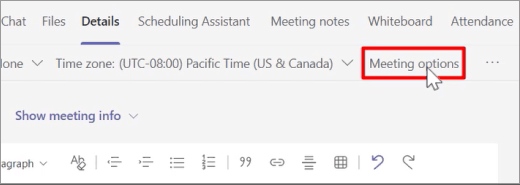
teams 1

4.  On the Meeting options page, turn on the Provide CART Captions switch, and then select Save to create the CART caption link.

5.  Under Provide CART Captions, a link appears. To copy the link, select Copy link. The link is copied to the clipboard.
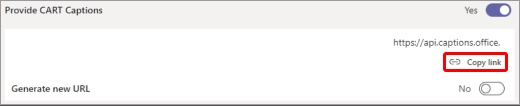
Teams 2

6.  Paste the link to an email message and send it to the CART captioner to enter into their captioning software.
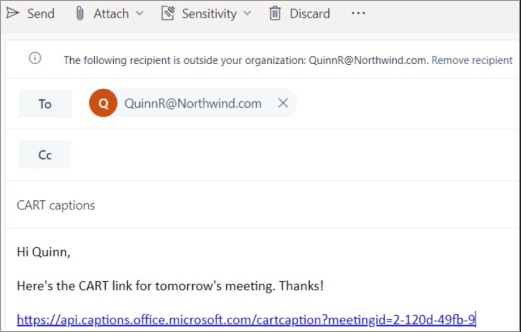
Teams 3

7.  Connect with the CART captioner before the meeting to make sure everything is set up correctly.
Adding Closed Captioning to your ON24 event is easy with Archive's caption streaming technology. Just follow these easy steps to make sure all of your attendees have full access to your important content:

1.  Log into your ON24 “Webcast Portal.”

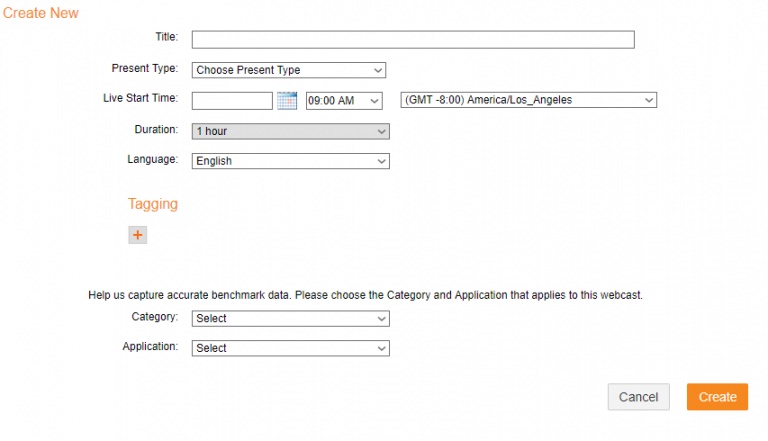
2.  Create a new webcast by selecting the “Create New”  option on the left-hand side. Add the necessary information to the On24 Window shown below, and then select “Create”:

ON24 1


3. Under the newly created webcast, select “Console Builder”:

ON24 2


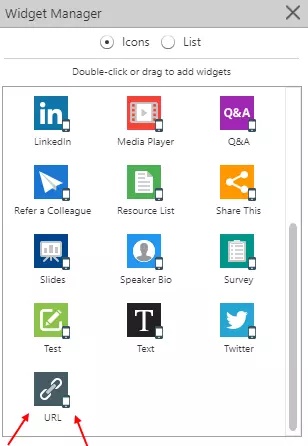
4. Select “Widgets”  from the top tool bar shown above to bring up the “Widget Manager”:

ON24 3


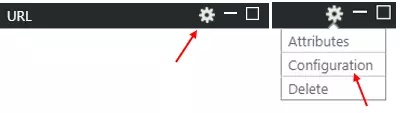
5. Under “Widget Manager,” please double click “URL”  located at the very bottom of the window. This will open the “URL” window.

Once open, select “Settings > Configuration” option at the top of your URL window as shown below:

On24 4


6.  Insert the embedded link in the URL window. To create the embedded link, add your event ID (provided in your confirmation email) to the following URL:

on24 5


7.  Select “Save” and your participants should now have access to the Caption Window.


Follow these easy steps to show live captions in your Zoom Meeting:

 1.  Make sure captions are enabled on your Zoom account.

  • Sign in to the Host account using the Zoom web portal
  • Go to Settings → Meeting → In Meeting (Advanced).
  • Scroll to Manual Captions and enable it.
  • Check the boxes for:
    • Allow host to type or assign a participant to type
    • Allow use of caption API Token to integrate with 3rd-party Closed Captioning services
    • Enable Full transcript and Save Captions.

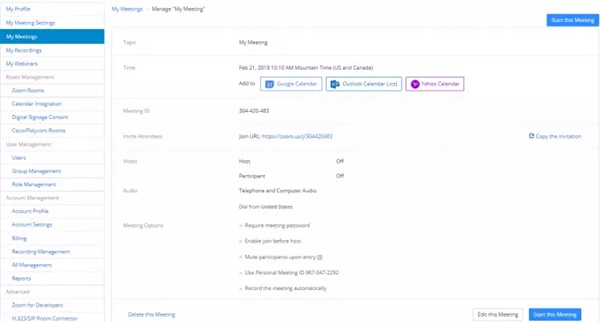
 2.   Schedule your Zoom Meeting at https://zoom.us/meeting as you normally would in the “My Meetings” tab and click “Save.” This will automatically bring you to the “Manage My Meeting” view of your meeting.  Click the “Start this Meeting” button at the top or bottom of this page:

zoom 1


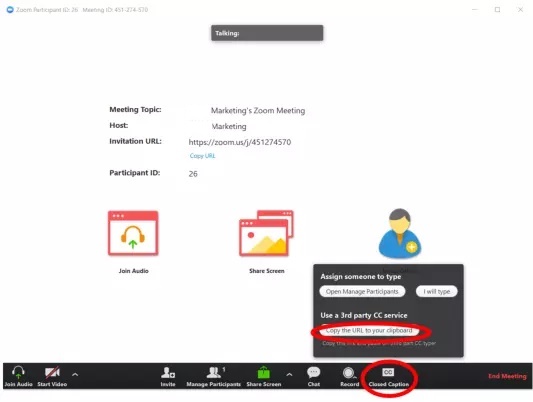
3.  Once you’ve clicked “Start this Meeting”, your next screen will look like this:

zoom 2


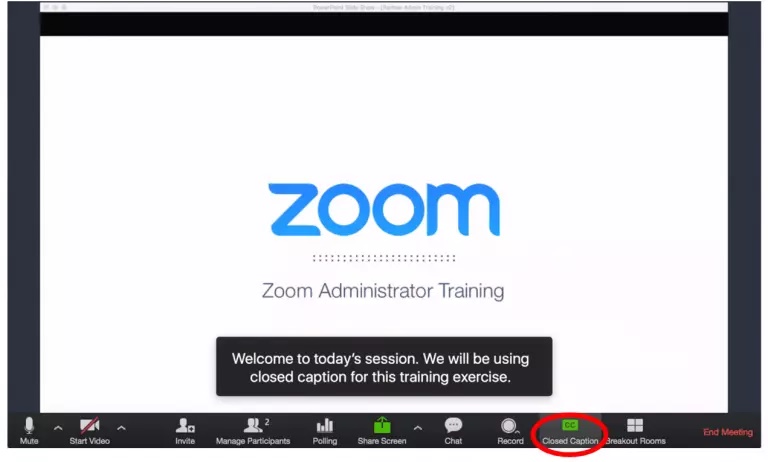
Click the “Closed Caption” button located in the menu bar at the bottom of the page. In the window that comes up, click "Use Third Party CC".  A link will be copied to your clipboard.  Send that link to Archive when you are scheduling captioning for your meeting.  This link is specific to each session so be sure not to change the session or you will need to resend the link.

* Once you have copied the URL to your clipboard, the website link you provide to Archive will be long and start like this: https://wmcc.zoom.us/closedcaption?id=

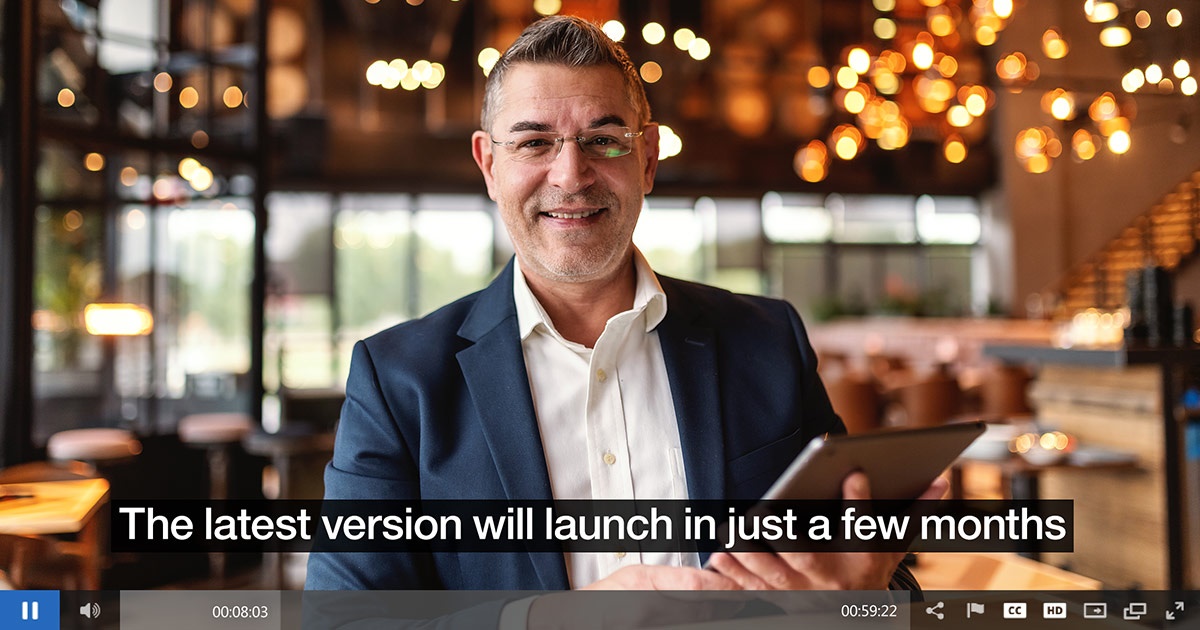
4. Zoom Captioning then appears at the bottom of your screen and are accessible to your meeting participants by clicking the “CC” icon (the icon will be green once the captioner is ready):

zoom 3

 Once your meeting is complete, click “CC” at the bottom of your page before exiting this screen.

 If you have any questions about live captioning in Zoom, please contact us at This email address is being protected from spambots. You need JavaScript enabled to view it. or call us at 800-870-1795.


Request a Quote 

Live Captioning Remote CART & Services

broadcast captions

Live Stream Captioning

As a leader in live captioning and remote CART services, Archive offers cost effective, professional live captioning services for virtual conferences and meetings, live streams, webinars, town halls and other special events.

live stream logos     Learn more »

Zoom Captioning

zoom captions

Zoom Captioning

Make the most of your virtual meetings and webinars by adding live captioning services from Archive Captioning.  Our integrated services for Zoom and Microsoft Teams meetings are easy to use and improves content retention and increases audience participation.       Learn more »